Documents
Document types at a glance
Use quotes, order confirmations, delivery notes, invoices and other documents the right way.
Choose the right document
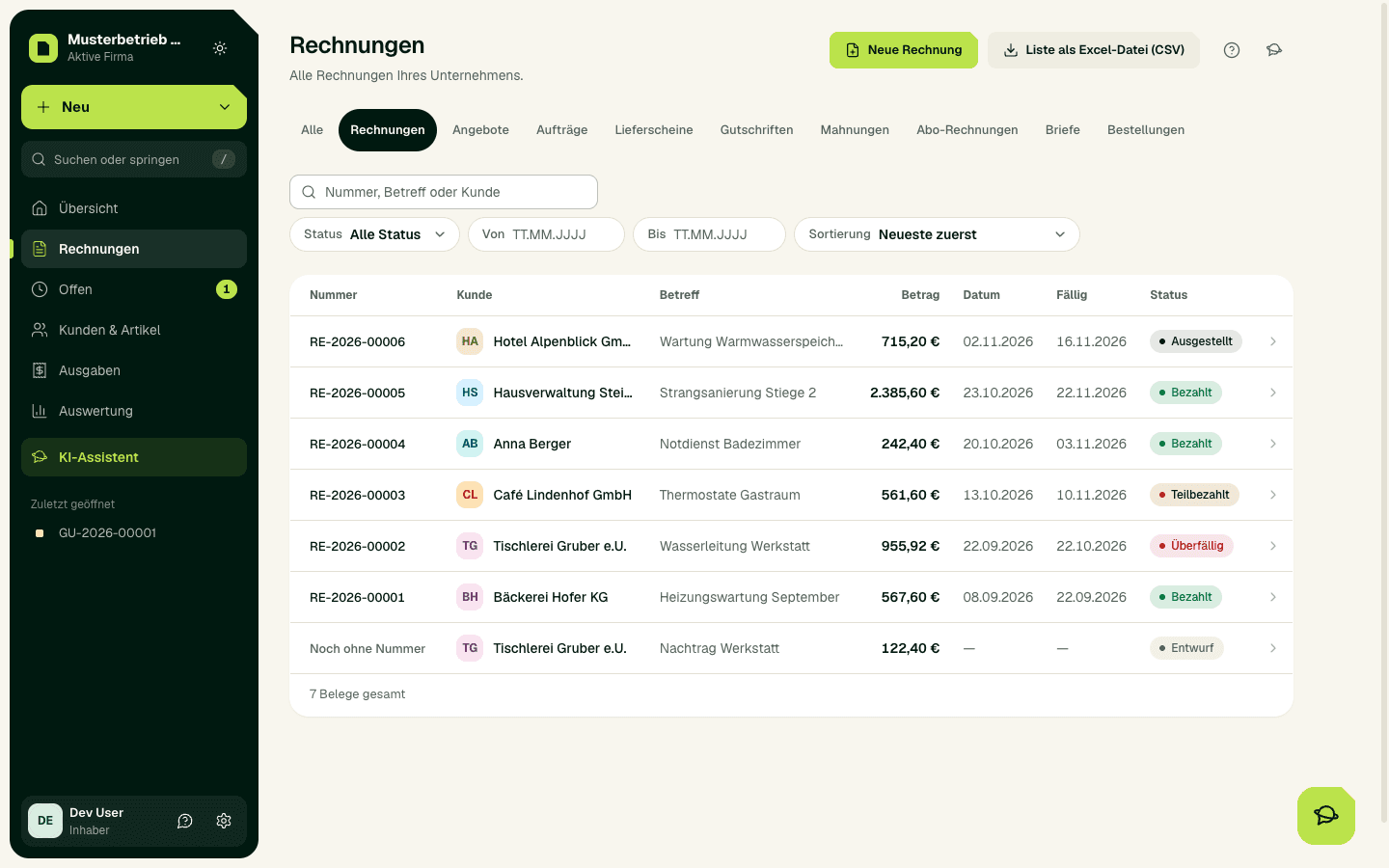
You find all documents in the sidebar under Invoices. Invoices, quotes and reminders have their own tabs; you choose the other document types in the selector next to them. Each tab has its own button: start a quote in the Quotes tab with New quote (or via New at the top); New invoice always creates an invoice. Choose the document type that matches what actually happened in your business.
- Quote for a non-binding or time-limited offer.
- Order confirmation for an order your customer has confirmed.
- Delivery note for a delivery; it shows no prices.
- Invoice for the final payment request.
- Credit note (Gutschrift) for a partial or full correction of an invoice. A cancellation (Storno) only comes from an invoice and cancels it completely.
- Reminder for an overdue invoice; it comes from the invoice or from the reminder run.
- Recurring invoice as a template for services that repeat in the same way.
- Purchase order for buying from a supplier.
- Letter for general business correspondence without line items.
Take documents further
You take a finished document further with Convert to …: quote to order confirmation or invoice, order confirmation to delivery note or invoice, delivery note to invoice. This creates a new, linked draft with the data copied over, including a different delivery address. Then check recipient, line items and amounts again.
With inventory (from Stern): The first issued document of a sale books the goods out of stock, that is the delivery note or, without a delivery note, the invoice. The invoice from a delivery note books nothing more. On an issued purchase order you book the goods receipt with Goods received, in parts as well. More on this under Products, services and stock.
Instalment invoice and final invoice
For larger jobs you bill in parts. On an issued order confirmation or quote you find the area Instalment invoices. Choose Percent of the order value or a net amount and then Create instalment invoice. At the end choose Create final invoice: it deducts the instalments received, including VAT, and shows the remaining amount. As long as an instalment invoice is still open, the final invoice cannot be issued.
Important
Expected result
The chosen document type is clear in the list, the draft and the detail view. A conversion creates a new, linked draft; the source document then counts as accepted or invoiced.
Common problems
Drafts and cancelled documents offer no conversion. If an order confirmation has already been invoiced, SoPasst asks before a second invoice. Missing required details prevent issuing.
Carry on safely
Check the document type and status of the source document. Do not create a different document type just to get around a block; correct the draft or choose the right process.